
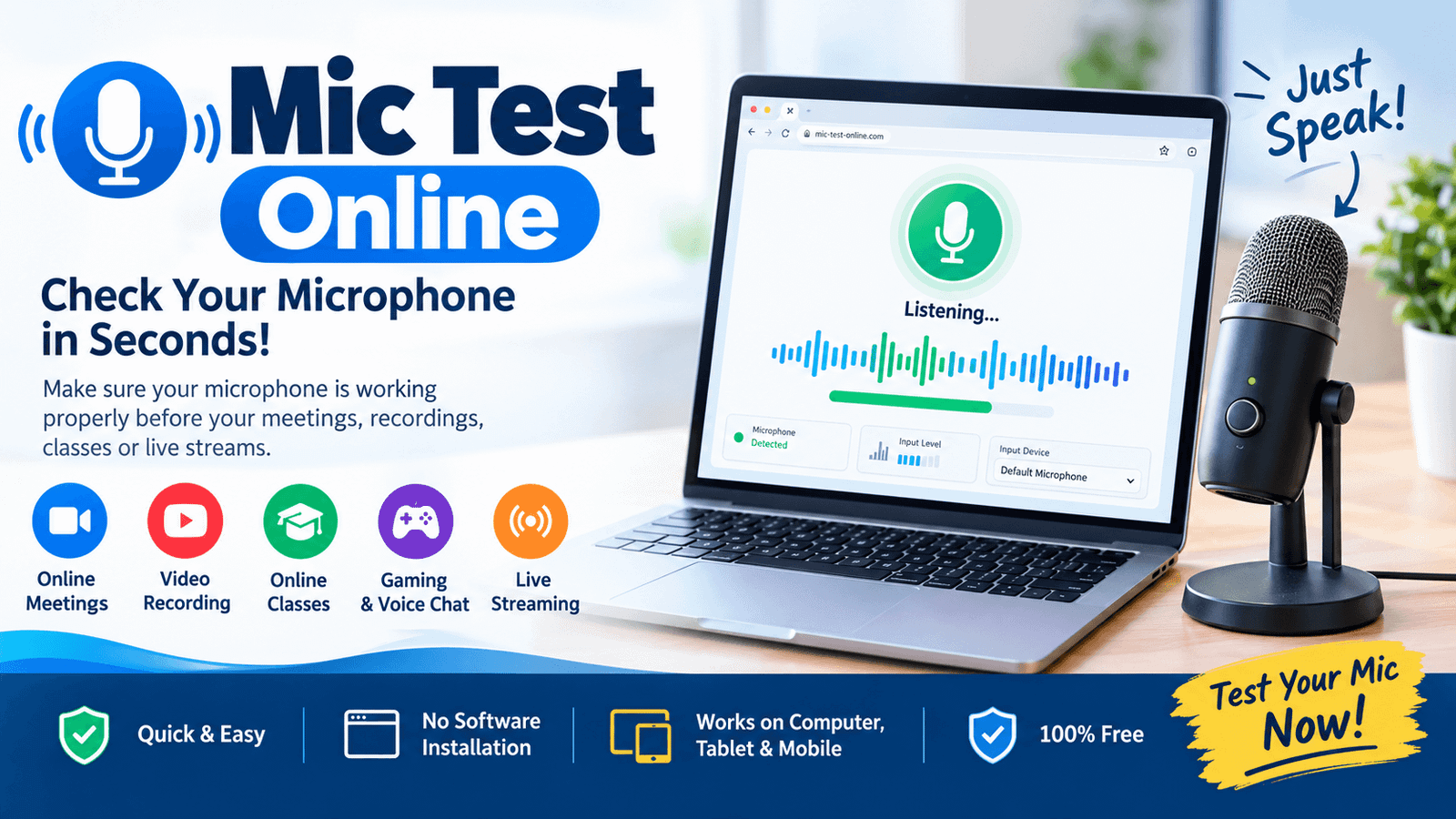
A Mic Test Online is a simple and convenient way to check whether your microphone is working properly without installing any software. Whether you are preparing for an online meeting, recording a podcast, attending a virtual class, gaming with friends, or joining a video call, testing your microphone beforehand can help you avoid unexpected audio problems.
In this guide, we'll explain what an online microphone test is, how it works, common microphone problems, and how to improve your microphone quality.
What Is an Online Mic Test?
An online mic test is a browser-based tool that allows you to check your microphone using your computer, laptop, tablet, or mobile device.
Typically, the tool accesses your microphone through your web browser and displays an indication when it detects audio. Some advanced microphone testing tools may also show information such as:
- Microphone input level
- Audio waveform
- Sound volume
- Microphone status
- Input device selection
- Left and right audio channels
- Audio frequency information
The main purpose is simple: to determine whether your microphone is detecting your voice correctly.
Why Should You Test Your Microphone?
A microphone can stop working or produce poor-quality audio for many reasons. Testing it before an important call or recording session can save time and prevent embarrassing situations.
You may want to perform a mic test before:
- Zoom or Google Meet meetings
- Online interviews
- YouTube video recording
- Podcast recording
- Online classes
- Gaming and voice chat
- Live streaming
- Voice-over recording
- Discord calls
- Video conferences
- Online exams
A quick test can tell you whether your microphone is properly connected and receiving audio.
How Does a Mic Test Online Work?
Most online microphone testers work directly through your browser.
Step 1: Open a Mic Test Tool
Open a reliable online microphone testing website using a modern browser such as Chrome, Edge, Firefox, or Safari.
Step 2: Allow Microphone Permission
When the website asks for microphone access, select Allow.
This permission is necessary because the browser needs access to your microphone to detect your audio input.
Step 3: Speak Into Your Microphone
Say something at a normal speaking volume.
For example:
"Hello, this is a microphone test."
The microphone test should respond to your voice.
Step 4: Check the Audio Indicator
If your microphone is working, you should normally see an audio level, waveform, or other visual indication moving when you speak.
If nothing happens, your microphone may not be selected correctly, connected properly, or permitted by your browser or operating system.
How to Know If Your Microphone Is Working
A working microphone should detect your voice consistently.
During the test, check whether:
- The audio meter responds when you speak.
- Your voice is detected at a normal distance.
- The volume isn't extremely low.
- There is no excessive background noise.
- Your voice doesn't sound distorted.
- The microphone doesn't randomly stop detecting sound.
If the indicator moves when you speak, your microphone is generally receiving audio.
However, detecting sound doesn't necessarily mean the microphone quality is excellent. You should also listen to a recording if the testing tool provides playback.
Common Microphone Problems
1. Microphone Not Detected
If the website cannot detect your microphone, check whether the microphone is connected correctly.
For a USB microphone, disconnect it and reconnect it to another USB port if necessary.
For a wireless headset, make sure it is powered on and connected.
2. Browser Microphone Permission Is Blocked
Sometimes the microphone works perfectly, but the browser doesn't have permission to access it.
Check your browser's website permissions and make sure microphone access is allowed for the testing website.
3. Wrong Microphone Selected
Computers often have multiple audio input devices, such as:
- Built-in laptop microphone
- USB microphone
- Webcam microphone
- Bluetooth headset
- Wired headphones
Make sure the correct microphone is selected as the input device.
4. Microphone Volume Is Too Low
If people can barely hear you, increase the microphone input volume in your operating system's sound settings.
Also make sure you aren't speaking too far away from the microphone.
5. Background Noise
Fans, air conditioners, traffic, keyboards, and other people can affect recording quality.
For clearer audio, test your microphone in a quiet environment.
6. Echo
Echo can occur when your microphone picks up sound coming from your speakers.
Using headphones can often reduce this problem.
How to Improve Your Microphone Quality
Testing your microphone is only the first step. You can also improve the quality of your recordings and calls.
Keep the microphone at a suitable distance: Don't place it extremely close to your mouth or too far away.
Speak naturally: Speak at a consistent volume rather than shouting into the microphone.
Reduce background noise: Close windows, turn off unnecessary fans, and move away from noisy equipment.
Use headphones: Headphones can reduce speaker feedback and echo.
Keep the microphone clean: Dust and debris around the microphone opening can sometimes affect audio quality.
Use the correct input device: Check your computer's sound settings before starting an important call.
Mic Test for Online Meetings
Before joining an important online meeting, spend a few seconds testing your microphone.
You should verify:
- The correct microphone is selected.
- The microphone permission is enabled.
- The input level responds when you speak.
- Your voice is clear.
- There is no excessive background noise.
This is especially useful for interviews, client meetings, presentations, and webinars.
Mic Test for Content Creators
Content creators should test their microphones before recording videos, podcasts, tutorials, or voice-overs.
Poor audio quality can make otherwise excellent content difficult to watch or listen to.
A simple microphone test can help you identify:
- Low volume
- Distortion
- Background noise
- Electrical buzzing
- Echo
- Intermittent audio
- Uneven audio levels
Recording a short sample and listening to it with headphones is one of the easiest ways to evaluate your actual sound quality.
Is an Online Mic Test Safe?
A microphone testing website needs microphone permission to perform the test. You should only give microphone access to websites you trust.
After completing the test, you can review your browser's site permissions and remove microphone access if you no longer need it.
Avoid granting microphone access to suspicious or unfamiliar websites.
Mic Test on Mobile Devices
You can also test a microphone using a smartphone or tablet, although the exact steps depend on your operating system and browser.
Make sure:
- Your browser has microphone permission.
- No other application is actively using the microphone.
- The correct microphone isn't blocked or covered.
- Your device isn't connected to an unwanted Bluetooth audio device.
If you're using wireless earbuds or a Bluetooth headset, check that the device's microphone is actually being used.
Frequently Asked Questions
What is a mic test?
A mic test is a quick check that determines whether your microphone is detecting sound and, depending on the tool, helps evaluate its audio level and quality.
Do I need to install software for an online mic test?
Usually, no. Browser-based microphone testing tools can generally work directly through a compatible web browser.
Why isn't my microphone working online?
The most common reasons include blocked browser permission, an incorrect input device, disconnected hardware, muted microphone settings, or operating-system permissions.
How can I test my microphone before a Zoom meeting?
Run an online microphone test or use Zoom's built-in audio settings to verify your microphone, input level, and audio quality before joining the meeting.
Can I test a laptop microphone online?
Yes. An online microphone test can be used to check a laptop's built-in microphone as long as your browser has permission to access it.
Conclusion
An online mic test is one of the easiest ways to check your microphone before an important call, recording, class, interview, or live stream. It can help identify basic problems such as microphone permissions, incorrect input devices, low volume, background noise, and connectivity issues.
Taking just a minute to test your microphone before an important event can make a significant difference. Test your mic first, check your audio level, and make sure your voice is clear before you start.
Reader Comments (0)
Leave a Comment ↓No comments yet on this guide. Join the discussion below!
No registration needed. Share your questions or audio setup tips.Join the Conversation
No registration required. All comments are moderated by administrators before appearing.